Friday, 14 August 2020

How to find package Name and Parameters in FUSION


How to get Job Package and Name

From Fusion Apps main page,

1.      Click the Navigator, and then click Setup and Maintenance.

2.      On the Setup page, select your setup offering such as Financials

Click on right icon as shown above to search for "Manage Enterprise Scheduler Job Definition and Job Sets for Financial, Supply Chain Management and Related Applications":

Select and Click "Manage Enterprise Scheduler Job Definition and Job Sets for Financial, Supply Chain Management and Related Applications" and search for "%Journal%" as shown below:


Select "Import Journals" row and click edit (please do not change anything as our goal is to get job package and name):

From above image, the job package is the PATH and job name is the NAME. These will be the first two columns in your property file for "Import Journals" with third column the sample prefix name of the zip file as suggested earlier: 

oracle/apps/ess/financials/generalLedger/programs/common/,JournalImportLauncher,GL_BU_ABC, <list of parameter separated by comma>


How to get list of parameters

Once we have job package and name, the next step is to determine the list of parameters for "Import Journals" job. Please follow these instructions:

From Fusion Apps main page,

1.      Click the Navigator, and then click Scheduled Processes in Tools.

2.      Click on "Schedule New Process" button and search (and select) for "Import Journals". It will display the list of parameters as shown below:

Final content in .properties file

/oracle/apps/ess/financials/generalLedger/programs/common/,JournalImportLauncher,GL_BU_ABC,<Data Access Set>,<source>,<Ledger>,<Group ID>,<Post Account Errors to Suspense>,<Create Summary Journals>,<Import Decriptive Flexfields>

Example: /oracle/apps/ess/financials/generalLedger/programs/common/,JournalImportLauncher,GL_BU_ABC,1061,Balance Transfer,1,ALL,Y,Y,N


Friday, 9 August 2019

Creation of Custom Parameterized ESS job in oracle fusion


How to create CUSTOM parameterized ESS in fusion

First of all create a data model and a report associated with it .
Now go to data model to create a parameterized query

select full_name from per_person_names_f where 1=1
and upper(first_name) like '%'||upper(:P_fname)||'%'
and upper(last_name) like '%'||upper(:P_Lname)||'%'

See sequence of parameters

Output be like

Now go to set up and maintenance and go to search > task > manage %ES%

We can select the ESS for the Human capital management
Go to + sign to create ESS

Enter all details

And also create two parameter : one with first name and another with last name and both are mandatory in the report


Two parameters:
One is required and another is not required:

Enter the report id as path of XDO present in Fusion
Select jobtype as BIPJobtype
Enter the name and all details

Now go to schedule the ESS job
Schedule new process

So, from the above screenshot we can easily conclude that if we keep the ordering / sequencing of the parameter same in BIP Report and ESS Job then the application automatically maps the parameter with the ESS Job argument and no explicit linking is required.
*Note: One can use the up-down arrow buttons (highlighted in yellow above) to re-order the parameters. One should ensure that the parameter order should exactly be same as that of BIP Report parameter sequencing.

Cheers

Scheduling Trigger in BI publisher Fusion Oracle


First of all create new Data Model and report , I am considering that you are well aware about the Data model and Report creation in BIP

Create an trigger into it , named as event trigger , same name you have to select at the time of scheduling the report

Create report

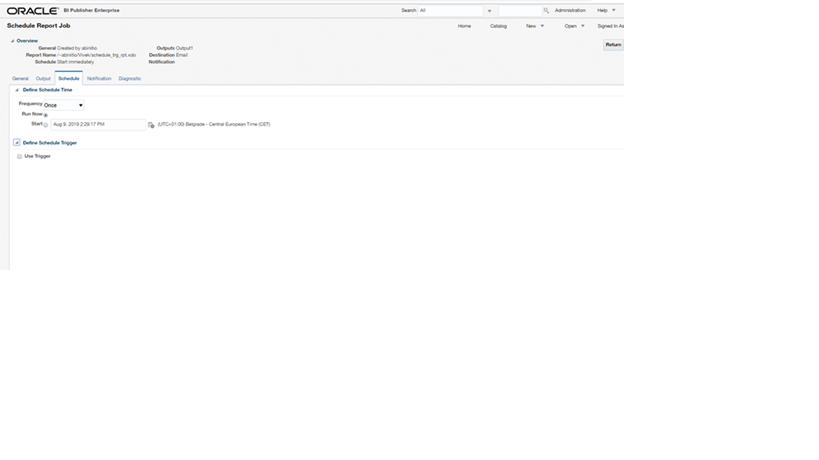
After creating report we can go to schedule the report

Click on use trigger

We can see event trigger name is present in trigger

Use of schedule trigger :
A schedule trigger allows you to conditionally execute an occurrence of a job. When the schedule time occurs, the schedule trigger is checked. If the schedule trigger returns data, the job will proceed. If no data is returned the occurrence of that job is skipped.

You will get a mail if successfully data returned

Change the  trigger name which you have defined in Data model , let say ORA_TRIGGER and also in data model change the query also (which will return no data so we can apply simply 1=2  in where clause )

Here it is ORA_TRIGGER
Now go to schedule the report again


This is the output of report

When there is no output then SKIPPED and if output is there then SUCCESS
If we are removing query from trigger and putting the query only in data model then scheduling will fail

Error : failed to execute event trigger

In this way we can use schedule trigger in oracle BI report fusion 

cheers 


Tuesday, 6 August 2019

Logic for insert data in Database in OAF

1. First, we have to write one new method in AMImpl class for creating new record

public void InsertRecord()
{
 InsertVOImpl vo= getInsertVO1();
 OADBTransaction trans= getOADBTransaction();
 vo.executeQuery();
 Row v_row;
 v_row = (Row)vo.createRow();
 vo.insertRow(v_row);
}

2. In controller,  we have to initialise the AM in processRequest

public void processRequest(OAPageContext pageContext, OAWebBean webBean)
{
 super.processRequest(pageContext, webBean);
 InsertRecordsAMImpl am=(InsertRecordsAMImpl)pageContext.getApplicationModule(webBean);
 am.InsertRecord();  /* Name of the method which we created in AM */
}

3. In processFormRequest, we have to write code for save the record into database.

public void processFormRequest(OAPageContext pageContext, OAWebBean webBean)
{
 super.processFormRequest(pageContext, webBean);
 InsertRecordsAMImpl am=(InsertRecordsAMImpl)pageContext.getApplicationModule(webBean);
 if(pageContext.getParameter("item")!=null)
 {
 am.getOADBTransaction().commit();
 throw new OAException("Employee Created sucsessfully",OAException.CONFIRMATION);
 }
}


thats it